This page is a wiki. Please login or create an account to begin editing.


37 posts / 0 new
Last post
Offline
Joined: 2014 Mar 15
Error type 25 and sound problems

I am just beginning to emulate mac games on my computer using basilisk II. I am having some problems with the games I am downloading.

I download a game like letsgettanked.img_.sit and I try to drag it to the "stuffit expander program but it fails and a wind comes up that says "the application "unknown" has unexpectedly quit, because an error of type 25 occured." This isn't the only game that's doing this, some games do expand, but when I play them the game has now sound.

Is it because I am using the wrong aladdin expander? Is it because I am using basilisk II? I am starting with old games and moving up, do I need to use minimac? I am using hfv.explorer to take the files I download and put them in the disk image of basilisk II instead of running them in "my computer" because I was told that was bad.

Comments

MikeTomTom's picture
Online
Joined: 2009 Dec 7

Is it because I am using the wrong aladdin expander?

Which version of the Expander? Which Mac OS? Which Basilisk II - JIT or build 142?

You should be using Stuffit Expander version 5.5 for best overall results on Basilisk II (or SheepShaver), as it runs on all of the Mac OS versions these emulators can run, it can also open files made with older & newer versions of Stuffit, mostly...

Using HFVExplorer, for copying Mac files from Windows, try the settings (under Options > Copying Files), "Raw copy, data fork only" and uncheck "Check for Apple Double". You should get more reliable results when dragging files onto the Expander (5.5) in your BII session then.

Can't help with the sound issue, just that I don't seem to have any problem with sound. I run Basilisk II build 142 only.

BTW, you can use the "My Computer" feature safely, as long as you treat it as a go-between drive only. That is, you can drag files from the "My Computer" drive into a folder inside the emulator's drive and then use them normally. Just never use or open them while they are in the shared drive, is all.

Offline
Joined: 2014 Mar 15

I am using, according to the file name, stuffit_expander_55.

By "which mac os" do you mean the rom file? if so I am using "quadra 650"

And for basilisk II I don't see anything that mentions what version but I believe it is the JIT and not the build 142.

And you say I can just drag files from "my computer" to the hard disk copy?

MikeTomTom's picture
Online
Joined: 2009 Dec 7

Version 5.5 is the Expander version to use. Tho' I would expect to see the name "Stuffit Expander™" as the application name, not "stuffit_expander_55".

By "which Mac OS" I mean the Macintosh Operating System that you have running on Basilisk II, not the ROM file (tho' Quadra 650 is one of the best ROMs to use). - When Basilisk II boots up to the Mac OS, up in the top left corner of the Mac window is an "Apple" icon, click this and you get a menu, the 1st item in the menu is usually "About This Macintosh..." or "About This Computer...", choose this and it will tell you what Mac OS or System version it is running, plus how much RAM you have available and how much RAM is being used by the Finder + other running programs, if any.

Yes, just drag (to copy) files from the "My Computer" drive into the mounted disk drive icon containing the Mac system and other folders & files, before you try to do anything with them and you should be good to go.

Note, simply dragging files from the "My Computer" drive out onto the Mac desktop doesn't count, as these files would still "belong" to the "My Computer" drive. You have to ensure that files are copied into an emulated drive 1st before using them.

If you run out of emulated disk space, you can create more disk drives and mount them as secondary disk drives when you start up Basilisk. Emulated secondary disk drives are also safe to copy files into.

Just remember to use the "My Computer" drive as a go-between only, for copying files from your PC into the emulator's drive[s], and not to open or run files while they're in the "My Computer" drive.

sfp1954's picture
Online
Joined: 2013 Dec 29

Make sure the files are on you virtual Apple drive not on the swap/interchange drive.
I've found it's best to avoid using the desktop unless you have dismounted the swap drive.
Every drive has it's own desktop folder - but they all show up as one desktop (the same way that every drive has it's own trash folder but they all map visibly to a single trash icon on the desktop). It's very hard to know where a desktop file actually resides unless you use the "put away" command.
If you drag a downloaded file onto the desktop it still resides on the swap disk. You haven't actually moved it to the MacOS disk. I would also try removing the "_" that gets added by MacGarden to compressed files.

As far as sound - make sure you use the suggested version of QuickTime for the emulator. If you go too far things won't work (especially with SheepShaver). And watch out for game installers that by default assume you don't have QuickTime installed yet and overwrite whatever QT files you do have installed. That used to get me a lot in the '80s.

Offline
Joined: 2014 Mar 15

Yes I have stuffit expander 5.5, I didn't see anything about what kind of mac system but the basilisk settings say "mac 0S 7.x." About this mac says it is the system 7.5.3 revision 2. It says my total memory is 8,192k, is there a way I can send a screenshot somehow?

Also what is meant by "the right version of quicktime?" I see the program on my programs list but how do I tell if its the right one?

MikeTomTom's picture
Online
Joined: 2009 Dec 7

"Mac OS" and the term "System" are interchangeable - that is, they mean the same thing. So what you see in "About this Mac" is the System/Mac OS version (7.5.3 revision 2). Thank you.

8,192k (8 MB) is very low for total RAM, this would be a bare minimum to boot the emulated Mac OS 7.5.3 rev 2. It also would explain why you are seeing those Type 25 error messages. Not enough RAM.

You can increase the RAM for the emulator in the Basilisk II Settings before you boot up into your next Mac session. This should help with those errors. I don't run the JIT version of Basilisk II on Windows but its probably under the Memory/Misc tab in the Settings where you can increase the memory for running your emulated Mac.

Bump the RAM settings up to 64 or 128 MB for this system.

is there a way I can send a screenshot somehow?

Yes, you can upload shots to any site that accepts images, like dropbox etc, and add a link to it in the page you're typing in, using the form: <img src="link_to_your_screenshot_image_here">

For a working example of this, see here.

Offline
Joined: 2014 Mar 15

This worked, sort of. It got rid of the error 25 issue, however now it says
"1 of the files that you tried to expand could have been expanded if you had DropStuff with Expander Enhancer or StuffIt Delluxe installed.
To learn more about DropStuff with Expander Enhancer online, visit: www.aladdinsys.com/dropstuff/index.html or just click on the "Deluxe Info..." button."
The website doesn't work and the Deluxe info button doesn't give me anything I can use. Do I need to download something?

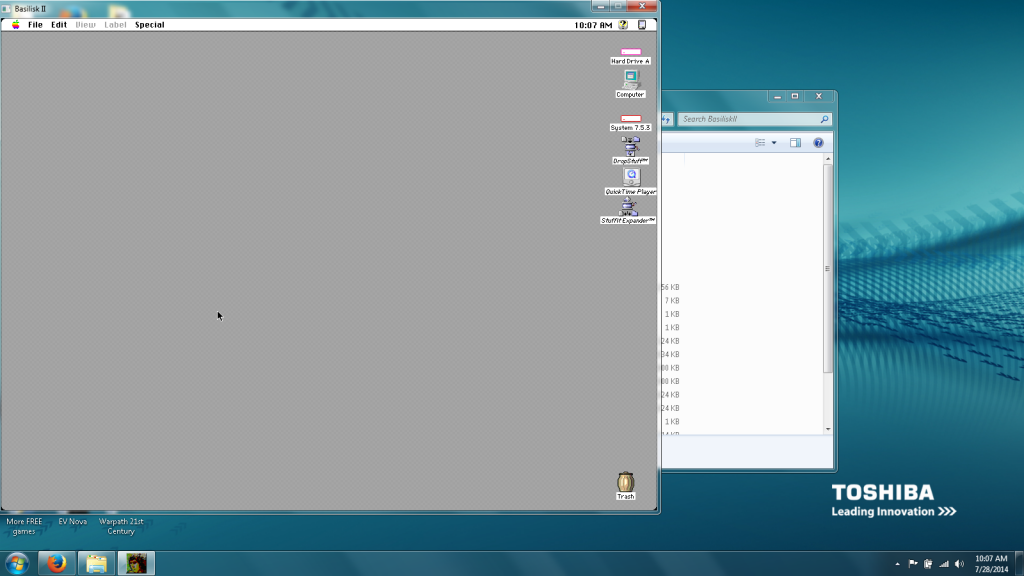
{Edited} Also it looks like my screenshot didn't work. Does this link work?

[URL=http://s1284.photobucket.com/user/starfiretbt/media/Basiliskproblem3_zps0c2ab7ca.png.html][IMG]http://i1284.photobucket.com/albums/a579/starfiretbt/Basiliskproblem3_zps0c2ab7ca.png[/IMG][/URL]

MikeTomTom's picture
Online
Joined: 2009 Dec 7

You need to search for old Stuffit version 5.5 compatible software like DropStuff 5.5 or Deluxe 5.5 from places like The Garden here. You can find 5.5 versions here on the StuffitDeluxe 1.5.x - 7.x page or use this direct download to get DropStuff 5.5 here: STUFFITEXP55.SIT (2.57 MB) It contains both Stuffit Expander 5.5 (which you already have) & Aladdin DropStuff 5.5, which you should install. DropStuff is for creating ".sit" archives, which you may or may not want to use, but it installs the Expander Enhancer into the System folder, and this is useful, giving the Stuffit Expander a lot more archive file types it can expand from. You stop getting that nag screen too.

About your image links... You need to use the format example I gave previously. That is, a link to show an external image needs to precede with an angle bracket "<" followed by the html command "img src=" and the direct link to the image placed between two quote marks " " and ending with a closing angle bracket ">"
As in: <img src="http://some-link-to-an-image.png">

I looked at your .png screenshot on photobucket. Its very good. Bear in mind that old software like Stuffit Expander 5.5 is giving error messages made back in the time when it was new, so if it gives links they are likely to be dead. Its why the Mac Garden exists. So long gone software is archived and can be found here if needed, now and in the future.

Offline
Joined: 2014 Mar 15

There are 12 options from the link provided, but if the second one is the correct link I downloaded that only to get the option that it is an older version from the one I currently have, should I ignore it and proceed with the download on my Basilisk II?

MikeTomTom's picture
Online
Joined: 2009 Dec 7

Try this direct link to get the one you need [get DropStuff 5.5 here: STUFFITEXP55.SIT (2.57 MB)]

Its actually number 11, down in the list of 12 items on that garden page.

Offline
Joined: 2014 Mar 15

That worked, the games are running. I still don't get any sound but I'm told I need quick time for that. I have quick time but I think its a modern version and I'm not quite certain what its used for.

Is there a quick time I need from the mac garden to get sound?

MikeTomTom's picture
Online
Joined: 2009 Dec 7

Look for "QuickTime 4" (include the quotemarks) using the Search field at the top of the page. You will want the 68k installer for this (its in the 1st DL on the QuickTime 4 page).

sfp1954's picture
Online
Joined: 2013 Dec 29

For Sheepshaver (PPC): Quicktime 4.1.2

http://macintoshgarden.org/apps/quicktime-4

For Basilisk (68K): Quicktime 4.0.3

Same download package as 4.1.2.
http://macintoshgarden.org/sites/macintoshgarden.org/files/apps/quicktim...

Offline
Joined: 2014 Mar 15

I have downloaded quicktime 4, I still have no sound in some of my games but I think its because I can't set the program up. After I unstuffed it I tried running it and got the error message

"The document "QuickTime4.cdr" could not be opened, because the application program that created it could not be found.

Could not find a translation extension with appropriate translators."

What else do I need to download, a text program?

Also why aren't my pictures coming in?

sfp1954's picture
Online
Joined: 2013 Dec 29

You would probably need a version of Toast installed to mount the cdr.
Not sure if you can do it with Disk Copy.
http://macintoshgarden.org/apps/toast-deluxe-4

Go back to the QT4 page.
I've added separate downloads for 4.0.3 (Basilisk) and 4.1.2 (SheepShaver).
All you need is some version of Stuffit Expander, Drop UnStuff...

Don't forget to drag the file into your Mac drive before expanding and installing.

MikeTomTom's picture
Online
Joined: 2009 Dec 7

"The document "QuickTime4.cdr" could not be opened...

The "cd" in ".cdr" is the clue, its a CD imaged file that can be burned back to CD - or mounted onto your desktop using appropriate software. You could use Toast - but its better to use instead the Virtual CD/DVD Utility from the Garden to mount these files, its super fast/lightweight and mounts most .CDR images, including this QuickTime 4 .cdr image.

Tho' I see sfp1954 has added fresh, easier to access QuickTime 4 ".sit" archives to the QT4 page, so you'd only need to DL the 68k one that he's put up and use Stuffit Expander to expand then install.

Also why aren't my pictures coming in?

You've been given pretty clear descriptions above, on how to link screenshots to your comments, so its something you're not doing right, at your end.

Offline
Joined: 2014 Mar 15

I have downloaded the quicktime 4 program. There was two options so I downloaded both. I forget which one eventually worked but I think it was the first one. A bunch of options came up and I chose the one that said "quickTime (v4.o.3) 68k. I went to the installer and clicked on it, I now have a quicktime player, but the programs still don't have sound, do I need to do something with the player? I think they said something about an upgrade. Do I need to upgrade it somehow?

{edited}

What I meant was I downloaded the Virtual dvd-rom/dc utility v.1.0d0 and was able to open up quicktime player, where do I go from here with the sound? Because I have the player

MikeTomTom's picture
Online
Joined: 2009 Dec 7

Its just possible that sound is not turned on in your emulated Mac, to begin with.

That is, the Mac is capable of making sounds without QuickTime being installed. Some games, especially very old games, do not require QuickTime to be installed to be able to make what ever sounds they are supposed to make.

So, open your "Control Panels" folder (under the "Apple Menu" top left corner of the Mac menu bar) and inside this there will be an icon for either a "Sound" Control Panel, or a "Monitors & Sound" Control Panel.

Open either one of these by double-clicking its icon. The sound settings should be set to "Built-in". Click any of the alert sound names you can see listed, like Quack, Susumi, Wild Eep, etc. Do you hear any sound? Or does the menu bar flash on and off? If its the menu bar flashing and no audible sounds then sound is not enabled. Try adjusting any slider bars you can see in the Control Panel.

BTW the QuickTime Player is an app that uses QuickTime for playing back QuickTime mov files, its not used by games to play back sound.

Offline
Joined: 2014 Mar 15

I do have my sound turned on, and some games I have no problem with sound, such as a game called "pararena" and another called "leprechaun." But the older games that are in black and white have no sound.

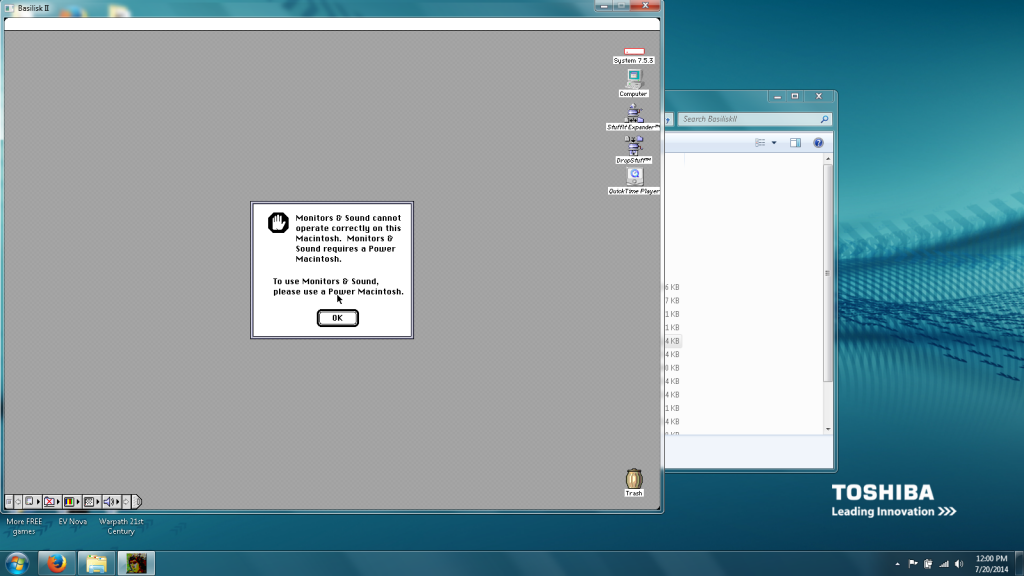
When I click on "Monitors & Sound" I am unable to open it. I get the message "Monitors & Sound cannot operate correctly on this Macintosh. Monitors & Sound requires a power Macintosh.

"To use monitors & Sound, please use a Power Macintosh."

{Edited}

Hey I got my picture to come up.

sfp1954's picture
Online
Joined: 2013 Dec 29

It looks like you somehow installed a PPC version of an OS (or a least that control panel) when you want a 68k version.
How did you install the original OS?
Check and see if there is a separate Sound control panel.
Usually it is in the Apple Extras folder if you have one.

JonathanNemo's picture
Offline
Joined: 2014 Mar 1

Would it hurt to have another cook in the kitchen?

It's not uncommon for the OS 8 or earlier installers to install a few PowerPC apps, extensions and control panels that you won't ever need on a 68k Mac, which is what Basilisk II emulates. This is not something to worry about.

There is a version of the "Monitors & Sound" control panel that works with Basilisk II, and that requires the SystemAV extension. However, it's not necessary. Don't worry about that one either.

MikeTomTom and sfp1954 have suggested looking for the "Sound" control panel. That's the one that's necessary for Basilisk II.

You can check the emulated Mac's volume from there, once you've launched the "Sound" control panel. Click on the pull down menu above (it will say one of the following: "Alert Sounds", "Sound In", "Sound Out" or "Volumes"). Select "Volumes", and check what volume is currently set for all the devices below.

If "Mute" is checked, uncheck that.

If the slider for your volume is all the way down, turn that all the way up, or to any level that's not at the very bottom.

Offline
Joined: 2014 Mar 15

When you say I installed a PPC version of an OS do you mean the basilisk program?

As to how I installed it I followed the directions
http://emaculation.com/doku.php/basilisk_ii_setup

As for a separate sound control panel there are only those in the control panel, monitors and sound, which doesn't work, and sound, under the apple icon and some distance from control panel there is a simple sound option but it has the same options as sound in control panel, and on the apple desktop there is an options bar with a volume control turned up all the way. Everything with sound is on and only two programs seem to have it, the ones without sound are older, black and white programs.

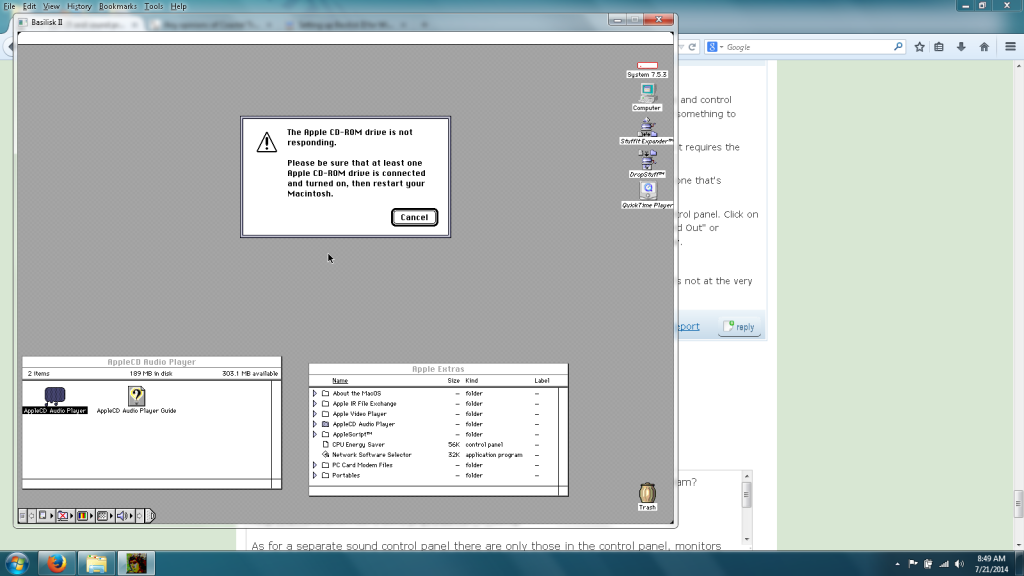
I have included a picture of my apple extras folder and the closes thing I can see to sound is the apple audio player, but that doesn't work also. it says
"The Apple CD-ROM drive is not responding.

"Please be sure that at least one Apple CD-ROM drive is connected and turned on, then restart your Macintosh."

Also some files seem to be a text document but I can't open them because I am missing something called "SimpleText." When I search macintoshgarden for simple text I get this
http://macintoshgarden.org/apps/simpletext-color-menu-34
but when I click on the download option nothing happens, is there a reason I can't download it? Are there other simpletext files I need?

sfp1954's picture
Online
Joined: 2013 Dec 29

What CD or Floppy set did you use to install you Operating System?
Every Mac OS install includes either Teach Text or its follow up Simple Text.
If you look at the Basilisk page you will see that at the end of a successful installation of 7.5.3 you should have a System Folder, a copy of Simple Text and an Apple Extras Folder. Most people then make an Applications folder and add Simple Text to it.

http://emaculation.com/lib/exe/fetch.php?tok=1d7374&media=http%3A%2F%2Fe...

sfp1954's picture
Online
Joined: 2013 Dec 29

If you used the correct 68K Performa ROM and you installed from the nineteen floppy 7.5.3 set you should not be having any PPC issues. The choice of ROM (and target machine in the GUI) tells the installer what kind of motherboard you (pretend to) have. If these are set wrong from the start you won't get the correct OS files installed.
You should also have separate Monitor and Sound control panels if you installed 7.5.3 correctly.
Here's my control panel folder (after updating to 7.5.5).

https://app.box.com/s/z1f92czvjrk9t2kf9hxh

Offline
Joined: 2014 Mar 15

I did not use performa, I used Quadra 900, but when I was downloading all the programs for basilisk I seem to have a "mac IIci (MacOS 7.x)" as well, I am running from 68030 cpu. Do I need to change anything? Do I need to download performa?

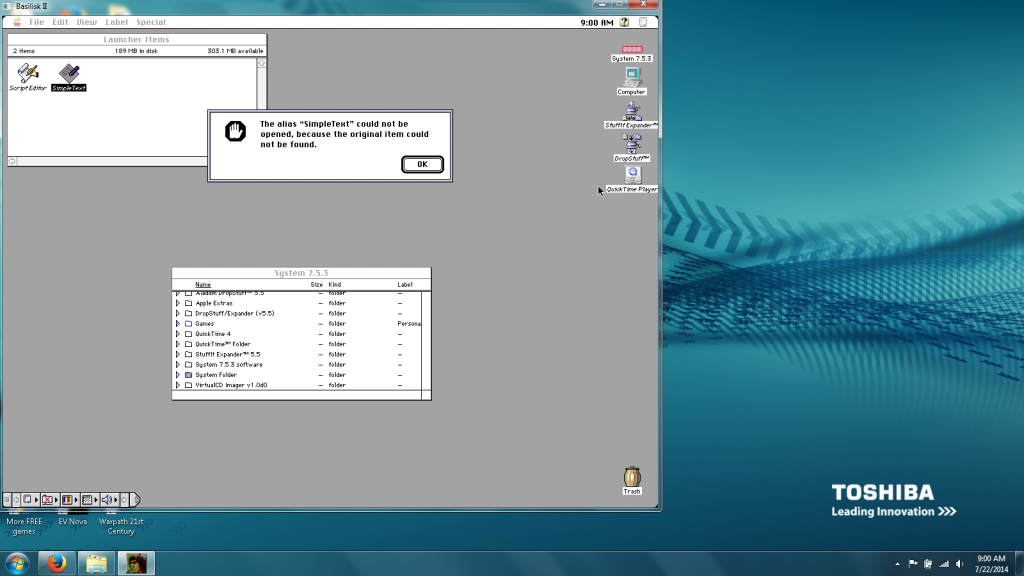
Also I found the simpleText file you mentioned, but when I try to open it I get

"The alias "SimpleText" could not be opened, because the original item could not be found."

MikeTomTom's picture
Online
Joined: 2009 Dec 7

I did not use performa, I used Quadra 900, but when I was downloading all the programs for basilisk I seem to have a "mac IIci (MacOS 7.x)" as well, I am running from 68030 cpu. Do I need to change anything? Do I need to download performa?

No, you said (up near top of this topic's thread) that the ROM you are using was from a "Quadra 650". If this is so, then this is a very good ROM for Basilisk II, you do not need one from a Performa.

The Quadra 650, was a 68040 type CPU, - so set your emulator to 68040.
Because you have set it to 68030, the Mac OS when it boots it thinks that you have a "Mac IIci" which is an earlier Macintosh and it had a 68030 CPU.

Also I found the simpleText file you mentioned, but when I try to open it I get
"The alias "SimpleText" could not be opened, because the original item could not be found."

No, you haven't found the SimpleText program file there. What you can see is an "Alias" to the SimpleText program. An "alias" in Windows terminology is a "shortcut" icon. Here you have the shortcut icon only, and the actual app is missing (or has been moved to a different location since that alias/shortcut was created).

Anyway, because you don't seem to have certain 68k System Control Panels etc, I think that you have not installed the Mac OS System Software correctly to begin with. I would be very tempted at this stage to re-install the system and start over from scratch.

Perhaps someone here might be able help you with these steps, too.

sfp1954's picture
Online
Joined: 2013 Dec 29

Probably not of much help if you are running on a PC but my entire Basilisk Folder is uploaded.
https://mega.co.nz/#!yARn0KxZ!W9NUBHlmBi9koBkXh7iXO2RamiNBkyZWctqiMOqBIOc
1.1GB in zipped format.

I'm not sure if you can just download - drop in your Basilisk and GUI apps and add the correct paths for the ROM, Unix and OS7.

Offline
Joined: 2014 Mar 15

Your right about my rom being quadra 650, I was confused because under Memory/Misc in my basilisk settings they give the names Quadra 900 under Mac Model ID so I was confused. There is also something called "Mac OS ROM" which I downloaded with the recommended files for basilisk, is that a rom as well that might work better?

In order to reinstall my basilisk program do you mean creating another volume with all the system folders and reinstalling them? So I can keep my old system folder if the new one doesn't work correct? I am worried about going through the process and somehow ruining it, but I can just keep the old system folder and put it back in on the Basilisk IIGUI program correct?

Also the Basilisk folder from sfp1954 needs something called the MEGA firefox extension to download. Is this a safe program? Firefox prevented the site from downloading it and I am very suspicious of online programs being downloaded onto my computer.

MikeTomTom's picture
Online
Joined: 2009 Dec 7

Yes with the Basilisk II (JIT) settings you only get a choice of two Mac models to emulate, one, the "Mac IIci" a 68030 type Mac and two, a Quadra 900, a 68040 type Mac. It doesn't matter that the ROM file is from a Quadra 650, Basilisk II (JIT) will only emulate either of those two Mac model types.

You can use the "Mac OS ROM" if you want to, but likely it will not make a difference if the current 650 ROM is in good order. It won't hurt to try either tho'.

You can choose either type of Mac to emulate too. In the Basilisk II settings, if you select the Mac Model ID as "Quadra 900 (MacOS 8.x)" then also choose "68040" from the "CPU Type" selection. If you select the Mac Model ID as "Mac IIci (MacOS 7.x)" then also choose "68030 with FPU" from the CPU Type selection.

There won't be much difference in performance from the model type you choose. The biggest differences are, the 68040 CPU will allow you to install a Mac OS up to version 8.1, whereas the 68030 choice will allow you to install a Mac OS up to version 7.6.1 only. You currently have installed System version 7.5.3 rev2, which can run on either 68030 & 68040 CPU types so it makes little difference to your Mac model preference here. I recommend that you choose Quadra 900, 68040 in the settings, for now.

I did mean create a new volume and install a fresh Mac OS system onto it. You can keep your original drive untouched and still usable as a fall-back.

In the Basilisk II settings under "Volumes" click the "Create" button. The "Create Hard File" dialog window pops up. Give the new drive a file size in MB's, for example; 500. Below the Size entry, enter a name for the new volume file, for example; Mac_500.hfv, then click OK. It might take a few seconds to create the drive depending on the file size you choose, you can create drive files up to 2000 MB in size. The "Create Hard File" dialog disappears once the new drive has completed building (it looks like nothing is happening, so just wait for it to close).

In the Volumes settings you would then see the new drive name listed at the bottom of mountable drives list in the Basilisk II Settings window.

Basillisk II boots up to the 1st Mac OS it finds in that list, so it will still boot up the system on the drive you currently use for now.

Click Start; When the Mac desktop boots up, the Mac will tell you that the drive "untitled" is not initialized and asks if you want to initialize the drive (this is your new Mac drive coming online). Replace "untitled" with any unique name you like here, for example; Mac_500, and click the "initialize" button. You should next see the new drive you've named, mounted on the Mac desktop under your current drive icons. Its now ready to use.

I assume that you still have the 7.5.3 install images on your current Mac startup drive. Double-click to mount the installer disk “System 7.5.3 01of19.smi” and run the installer.

Be observant here and take time to read the instructions as you go, because when you run the installer it will ask to install the system onto your current startup disk. You don't want to allow this.

There will be a button in the installer dialog window that allows you to switch disks, click this and switch to the new Mac drive in the installer dialog's window. Once you have it, then install (Standard Install option) to the new Mac drive. Wait for it to finish installing & once it completes, shut the Mac down from the "Special" menu at the top of the Mac screen.

Start the Basilisk II settings again. Under Volumes click the name of your original Mac hard drive file to select it then drag it down below the name of the new drive file. This puts its name below that of your new drive so that the new drive is now 1st in the Mac's boot order.

When you next start the Mac up it will now boot up to the new system on the new drive. Your old drive will still be there and you can copy or install files from that drive to the new, or simply use the old drive as a secondary disk drive. You will need to re-install important applications like Stuffit Expander & DropStuff, etc.

About "Mega". I don't have a nice word to say about this service, so I'm probably not a good person to ask. I'll just add that I have not once been able to use its services successfully... whereas others can & do...

BTW, here's a PDF book that you might find useful, its called Jargon. Its not a book you have to read from end to end, its a dictionary of (old) computing terms, so if there's any word you read or hear about referring to some arcane thing you've not heard of before re: classic computing, there's a good chance it will be mentioned in this book. The DL for it is the "Manual" link on that page.

Offline
Joined: 2014 Mar 15

So I think I understand, the way I installed it before I followed these instructions,

http://emaculation.com/doku.php/basilisk_ii_setup

Your advice seems the same only instead of using the (system70_boot.dsk) file I will be using my original hard disk Correct? I would then install the system folders 1-19, which will be on my new hard, onto my new hard disk and not onto my old hard disk correct? And finally I will go back to GUI and rearrange the hard disks so the new one is first and the old one is last, am I following?

{Edited}
I just tried to reinstall the system folders 1-19, Basilisk didn't tell me that a new drive is not initialized, but I tried to install it anyway. When I clicked on 01of19.smi and ran the installer no instructions came up, only the license agreement, but I continued. When I agreed it began to install to my original folder. I don't see how to choose which hard drive to install the new folders. Also in order for my to install these folders I have to disable the jit compiler, thats not important is it? Last time I had difficulty and thats what was recommended, could that have messed up my installation?

MikeTomTom's picture
Online
Joined: 2009 Dec 7

Correct, you will be using your original hard disk.

No, you didn't run the installer there. When you double-click "System 7.5.3 01of19.smi", yes, you will get a screen asking you to agree to its license. What you thought you saw next as "it began to install to my original folder" is a progress bar (the disk image mounter is checking itself for faults, before it mounts onto the desktop).

The file named "System 7.5.3 01of19.smi" is a (self mounting) disk image file, its not the System installer. Disk image files mount onto the Mac's desktop like a virtual hard drive, after it does its self-check you will see another icon appear on the desktop, just under the drive icons that you have near the top right-corner of the Mac screen.

Once you click OK to the license in "System 7.5.3 01of19.smi" and the self-check progress bar disappears, look at the Mac screen near the top-right corner under your current disk names. There will be a new icon there with the name "Sys7.5 V7.5.3 CD Inst". Double-click this icon to see its contents, inside you will see the "Install" icon. Double-click this to begin the actual System install process.

Here you will get a "Welcome to System 7.5, version 7.5.3" splash screen. Click the "Continue" button and the installer window launches, in its window you will see "Easy Install" near the top left of the installer window. Down in the lower left side of the installer's window you will see name of the "Destination Disk" and a button called "Switch". If the destination disk gives the name of your current start-up disk, then hit the "Switch" button until the name of your new hard drive comes up. Once that's done, click the "Install" button. You should then see the proper install take place. And once that's complete, follow the rest of the hints from my previous post.

You should not need to have the JIT compiler disabled to do any of this.

Offline
Joined: 2014 Mar 15

I just reinstalled the system folders and made a new hard drive. I also successfully transferred my games to the folder, they work but the ones without sound still don't have sound. My simple text works and I was able to transfer stuffit expander and reinstall Dropstuff. I was able to transfer my quicktime 4 folder and my virtualCD imager program works but when I try to install QuickTime 4 it asks for a registration number. Most programs I have downloaded have a folder or a text document with the registration number but this quicktime doesn't. Do you guys know the registration number? Also I have the choices of QuickTime 68k or QuickTime PPC, which one should I install? PPC is the latest it looks like but I would hate to have a version that isn't compatible with other programs.

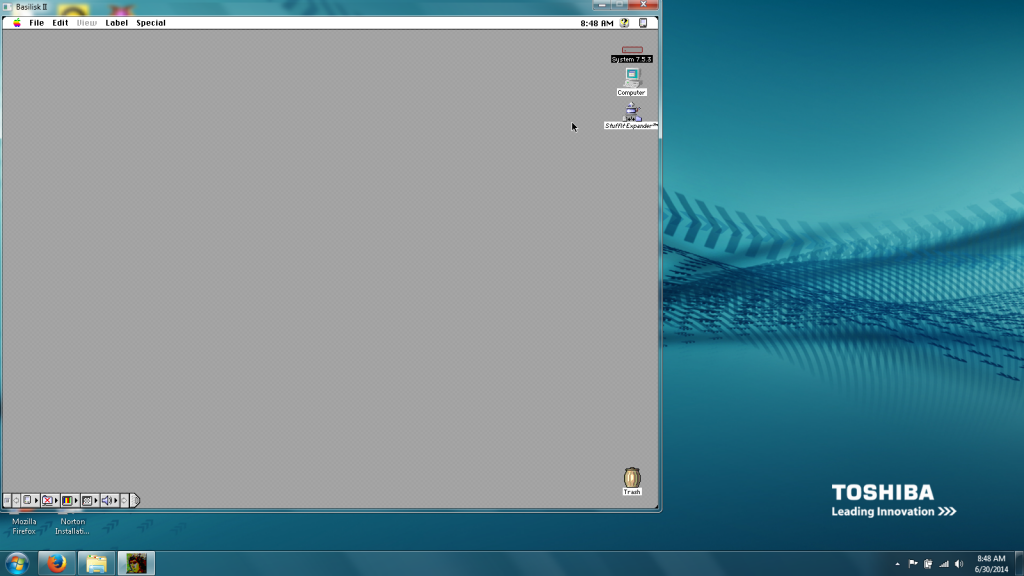
One more thing, this new set up doesn't seem to have the menu bar at the bottom of the desktop that controls things like color and sound. How do I get that menu bar?

Old desktop lower left corner menu bar
 photo MacDesktop_zps4f2b59be.png

New desktop, no menu bar
 photo Basiliskproblem8_zps856c0676.png

MikeTomTom's picture
Online
Joined: 2009 Dec 7

"Also I have the choices of QuickTime 68k or QuickTime PPC, which one should I install?"

The type of Macintosh, Basilisk II emulates, is a 68k machine. PPC coded apps cannot run on this kind of Mac. If you're offered a choice of either 68k or PPC software to install, you must always choose 68k with Basilisk II.

"One more thing, this new set up doesn't seem to have the menu bar at the bottom of the desktop that controls things like color and sound. How do I get that menu bar?"

That "menu bar" is called a "Control Strip", it has a bunch of modules mostly used for controlling sound & display settings.
The functions they perform can also be activated by their equivalent Control Panel, located in the "Control Panels" folder ("Apple Menu" > "Control Panels").

The "Control Strip" is in itself, a Control Panel. If its not in the Control Panels folder, open the System Folder (inside your new drive) and look for a folder named "Control Panels (Disabled)", If that folder exists, open it and see if the "Control Strip" Control Panel is in there. If its in there, drag it out and put it into the "Control Panels" folder and restart the Mac.

If its not in either folder, then it didn't get installed (for reasons unknown). So... Relaunch the file "System 7.5.3 01of19.smi" and open the "Sys7.5 V7.5.3 CD Inst" icon on your desktop and re-run the Installer (you must be getting used to this by now).

When the Installer window appears, this time the Destination disk should have the name of your new hard drive (if not, Switch to it). In the top left corner of the Installer window, click onto "Easy Install" and choose "Custom Install" from its pop-up menu. You should now see a bunch of names in the installer window with triangles & squares to the left of each name. Look for the name "Mobility" in the list, click the triangle symbol to the left of "Mobility" so it presents you with a sub-list. You may need to scroll down in the sub-list here to where it has the name "Control Strip" listed under "Mobility". Click the box next to the "Control Strip" to place an "X" to the left of its name. This is the only item in the list to check, so now you can click the "Install" button to finish.

When you next boot up the Mac screen you should have your Control Strip back.

sfp1954's picture
Online
Joined: 2013 Dec 29

You only need a serial to activate quicktime pro.
So just continue, hit a return...

Offline
Joined: 2014 Mar 15

I am going through my system folder and I am finding a couple of programs that didn't get loaded onto my new system folder but did on my old one. I am copying those programs and folders from my old one to my new system folder. What if I am missing programs and folders in both? Is this why I don't have sound on some of my games?

 photo Basiliskproblem9_zpsf4ddfcee.png

As you can see the control panel on the right, my older one, has more stuff in it then the left one, my new one.

MikeTomTom's picture
Online
Joined: 2009 Dec 7

Your original installation was done by following the setup procedure at emaculation. - which suggested that you select a "Universal Install for Any Macintosh" as the method for installation.

This is kind of a "kitchen-sink" approach, as it installs everything for every known kind of Macintosh that particular System install can run on. Because of this you got a lot of stuff that didn't work on your particular emulated Mac.

For the new drive, I got you to install using the "Easy Install" option. This gave you a System installation of what your particular emulated Mac model actually required.

There is no point in stuffing-up your current new install with reintroducing stuff that was broken, or not working, to begin with.

The pic you have there is of two open Control Panel windows. Control Panels are important System files. If you add unnecessary Control Panels from the previous system install, you may find that the results may be unpredictable, possibly with random crashes, etc. - I see you've moved over "PowerBook Display" and "601 Processor Upgrade" - you aren't emulating a PowerBook and your 68k emulated Mac does not and never will have a (PPC) 601 Upgrade! Remove these for starters & whatever else you've introduced since upping the above pic.

Sound is already working on your new system. That some old games don't appear to have sound is possibly because they don't have any sound, or if they do, they are rudimentary beeps. Who knows. But adding System files from the original disk is very unlikely to improve the outcome.